Figma Plugin for Slides

Your Design file is the source of truth. Keep your deck that way.

For Instance scans every slide, finds every component instance linked to your Design file, and updates them all in one click — no copy-pasting, no version drift.

Free to install  ·  30-day free trial  ·  No credit card required

The connection breaks the moment you paste.

When you place a component from your Design file into Figma Slides, Figma severs the link. From that point, no matter how many times you update the original, every slide stays frozen on the version you pasted.

The only fix is manual — find the updated component, copy it, and paste it into every single slide. One by one. On a 100-slide deck with 5 components per page, that’s 500 copy-pastes per round of changes. Multiply by every design iteration.
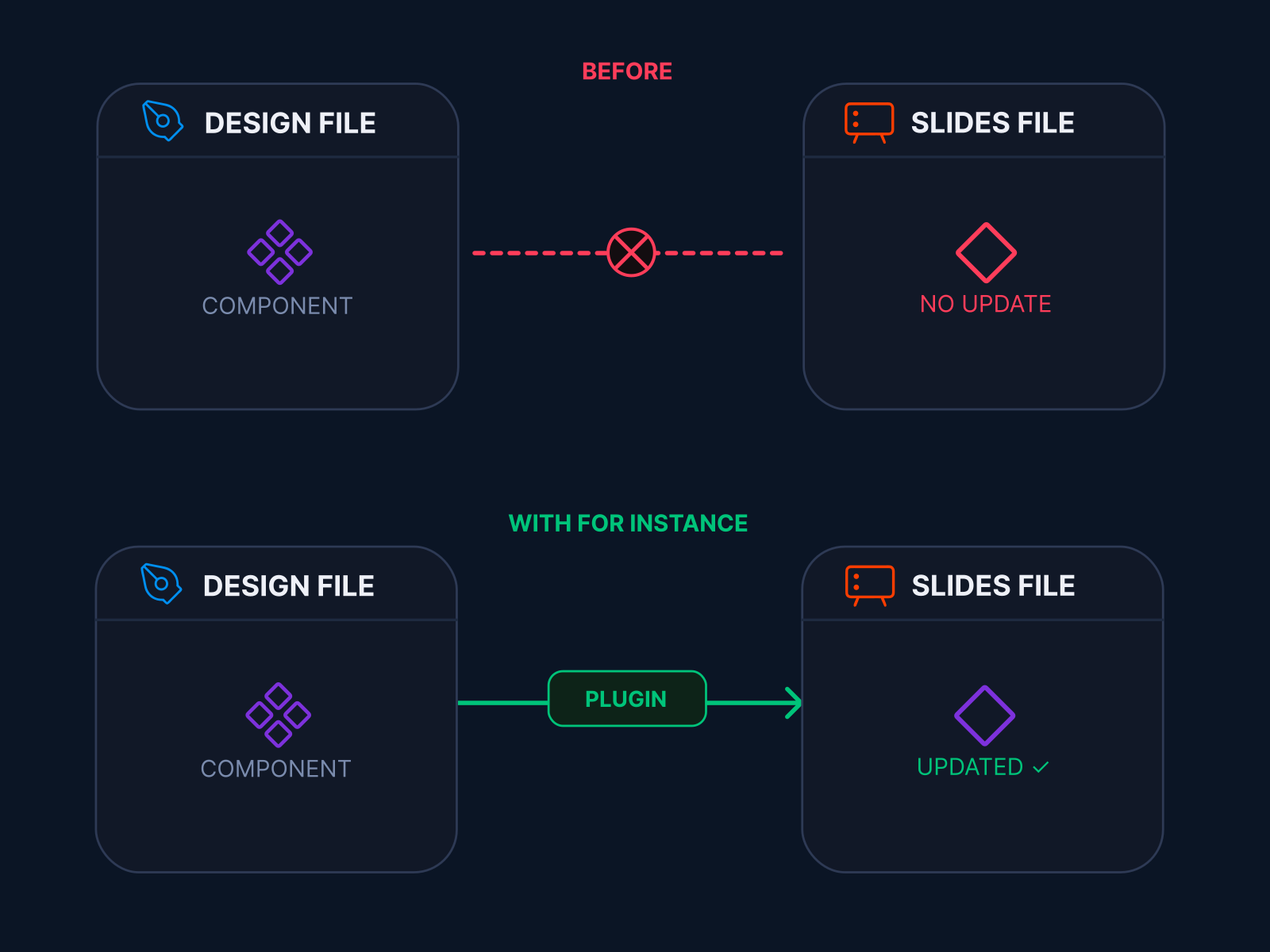
Before and after diagram showing how For Instance keeps Slides aligned with Design

Your Design file is the master. For Instance is the bridge.

Your Design file is where components live, evolve, and get approved. It should be the single source of truth — not just for your design team, but for every presentation built from it.

For Instance reads the latest version of every component directly from your Design file and places it into your slides. Both files stay in agreement. Your Design file never loses its authority.

1 COMPONENT in your Design file PRESENTATIONS that can reference it 0 COPY-PASTES to keep them up to date UPDATE ONCE IN DESIGN · CONSISTENT ACROSS EVERY DECK

Three steps. One click to update.

Open the plugin in your Slides file. Everything else takes about 30 seconds.

1

Scan

Click Scan Slides and the plugin searches every frame on every page, building a complete list of every component instance linked to your Design file.

Works across all pages
2

Review

Every linked component appears in a list with its name and slide location. Click any row to jump directly to that instance on your canvas.

Click any row to navigate
3

Update

Update specific instances or everything at once. The plugin fetches the latest render from your Design file and replaces each one in place — position preserved.

Select some or update all

See what staying manual is actually costing you.

Manual re-pasting sounds manageable — until you run the numbers. Enter your deck’s specs and see exactly how much time you’re spending on something that should take 30 seconds.

Manual Work Estimator

Enter your deck’s specs. The calculator estimates how many individual copy-paste actions you’d need — and how long that would take compared to using For Instance.

Adjust to match your deck

That’s 9,900 individual placements. Here’s the time difference:

Without For Instance
41–83 hrs
manual copy-paste
vs
With For Instance
~30 sec
scan + update

30-day free trial. Scales to any team.

For Instance keeps your Figma Slides aligned with your Design components — automatically. Start your free trial today, no credit card required. Upgrade for unlimited updates, or get your whole team on one license.

FREE TRIAL
$0 / 30 days
No credit card required

  • 30-Day Trial — Full Access
  • Slides: Scan & update all instances with external design source
  • Design: Scan for components linked in Slides
  • Discord access
TEAMS
$12 /seat/mo
billed annually  ·  or $15/seat/mo monthly
Total: $24/mo

  • Everything in Individual
  • 2–20 seat capacity
  • Enterprise Level Admin Panel
ENTERPRISE
$12 /seat/mo
billed annually  ·  or $15/seat/mo monthly
Total: $3,600/yr ($300/mo)

  • Everything in Teams
  • 25–500 seat capacity
  • Admin Panel

📨 Need approval from your manager?

Copy this pre-written email and send it to whoever holds the budget.

Subject: Approve For Instance ($15/month) — saves us hours per design round Hi [Name], I'd like to get approval for a Figma plugin called For Instance ($15/month, billed annually). Here's the problem it solves: when we place components from our Design file into Figma Slides, the link is severed. Every time we update a component, I have to manually copy-paste the new version into every slide that uses it. On a 100-page deck with 5 components per page, that's 500 copy-pastes per round of changes. For Instance fixes this. I open the plugin in our Slides file, click Scan, and it finds every out-of-date placement. Then I click Update and it refreshes them all in one pass — in about 30 seconds instead of hours. At $15/month it pays for itself after one use. Happy to demo it. Thanks, [Your name]
Activating Pro: Your license key arrives by email after purchase. Open the plugin menu (☰) → Upgrade to PRO → paste your key → Activate.

Managing a team? See the Enterprise admin features →

Your data never leaves Figma.

For Instance makes read-only calls directly to Figma’s official API. Your API token is stored locally on your device using Figma’s sandboxed client storage — it never touches our servers. No analytics, no telemetry, no file content transmitted.

Full security details →

🔒
Read-only API access
The plugin only reads from your Design file — it never writes to it.
📂
Token stays on your device
Stored in Figma’s sandboxed client storage. Never uploaded anywhere.
🚫
No analytics or telemetry
We collect nothing about how you use the plugin.
FIGMA API api.figma.com read-only FOR INSTANCE PLUGIN runs inside Figma LOCAL STORAGE figma.clientStorage SLIDES FILE instances updated ✓ No data ever sent to Casita Film servers

Common questions

Do I need a paid Figma account?
Yes. Figma’s free (Starter) tier API rate limits are too low to complete even a single update. For Instance requires a paid Figma seat — Professional, Organization, or Enterprise.
What counts as an “update”?
One update action is counted each time you click Update Selected, regardless of how many instances are included. Updating 20 at once = 1 update action.
Does updating affect my slide layout?
The plugin preserves the exact X/Y position of each instance. If the component’s size changed in the Design file, the new render will reflect those dimensions — which is expected behavior.
Can I use my Pro license on multiple computers?
Yes — one seat covers one Figma account on any number of machines, as long as you’re signed into the same Figma account.
Does the admin count as a seat?
Yes — whoever enters the license key in the plugin activates a seat. If you’re the admin and also use the plugin, that’s one of your seats. If you’re only managing the license and won’t use the plugin yourself, simply share the key with your team and none of your seats are used until a team member activates it. Every Teams and Enterprise plan includes one extra seat to cover the admin.
My license key isn’t working.
Keys are case-sensitive — copy exactly from the receipt email. Still not working? Email support@casitafilm.com with your order number.
✉️
Get in touch
Questions, bugs, or enterprise inquiries — we respond within one business day.
support@casitafilm.com